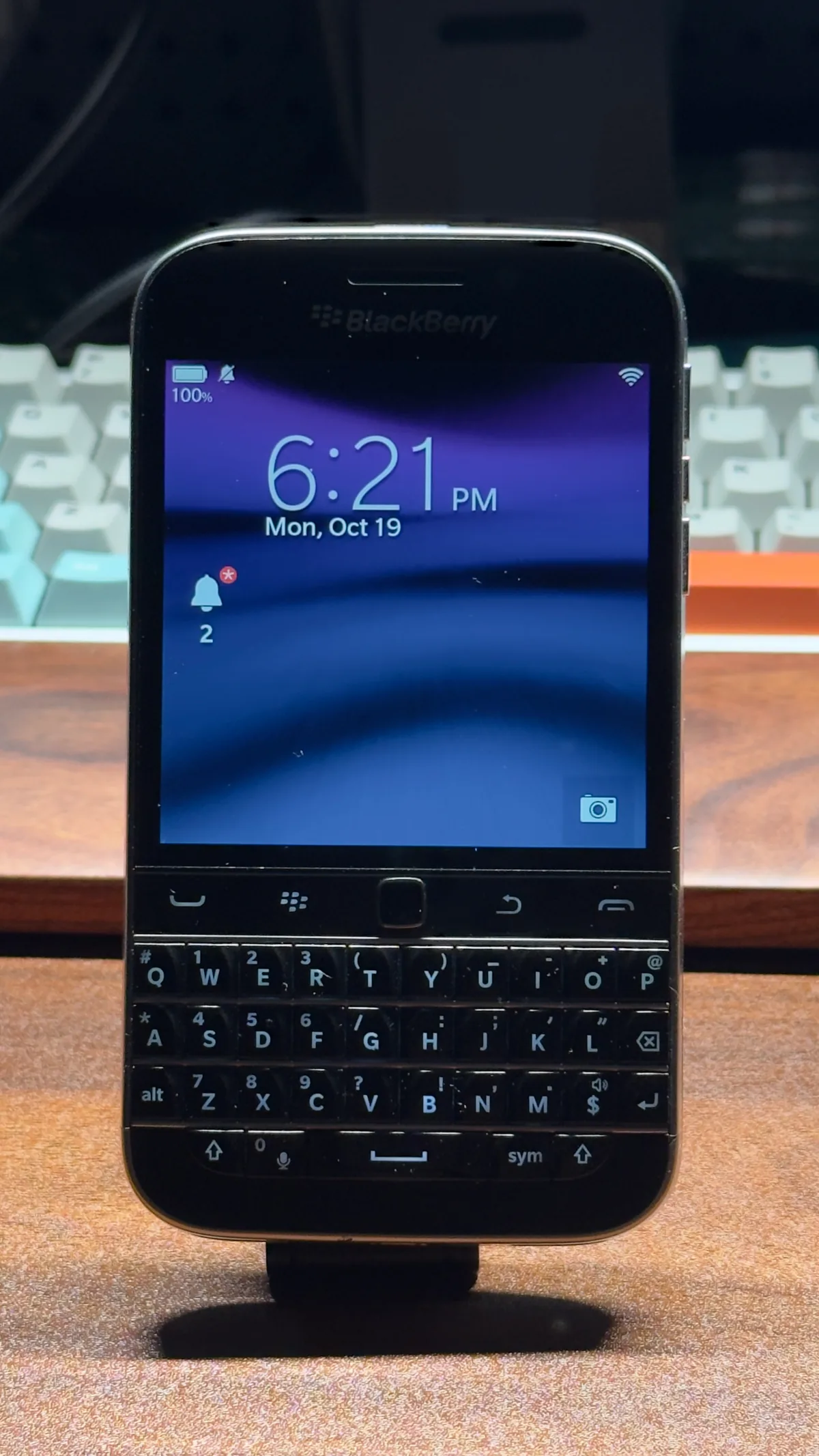
This Q20 (SQC100-2, system 10.3.3.3216) in my hands was bought back when I was in my first or second year of high school, and I used it as my main device for over half a year.
In 2022, BlackBerry shut down its developer site and signing services, and the BB10 app store had disappeared even earlier. I could no longer install anything new. All that remained were a few low-version Android apps I had installed back then to barely improve usability (like e-book readers), plus the few useless built-in system apps.
With the help of AI, I can now write some native or Android apps to give this old device with a physical keyboard more fun to play with. But native apps require BlackBerry’s official signing certificate, which is no longer available. That leaves only one path: flashing, rooting, and modifying the system.
The community’s approach is to unpack the official autoloader, modify it, and then flash it back: add root, preinstall tools, and remove the setup wizard—all in one go. This post documents my process of flashing it, as well as the reasons for several failed attempts. The final section covers the Term49 terminal I modified afterward.
Before Starting the Flash
What you need to prepare: the 10.3.3.3216 MOD package for the Q20, the community-port bb10mt (I used the macOS ARM64 version), and the accompanying bb10mt.ini and loaders.dat.
The MOD package is split into two images:
| Image | Contents | Size |
|---|---|---|
.0.unsigned |
System (including root and preinstalled tools) | About 2.5 GB |
.1.signed |
Baseband | About 54 MB |
Both must be flashed, system first, then baseband.
Starting the Flash
After the flashing command starts, the tool must wait for the few-second BootROM window when the phone powers on and boots. Plugging in the cable too early will cause you to miss it.
Flashing also works on Windows: convert the package into an autoloader (system
2.6 GBand baseband as two EXE files), install the USB drivers that come with BlackBerry Link, and double-click them.
After connecting the phone to the computer, flash the system image in this order: run the command first → power off the phone → plug in the cable → enter the password.
./bb10mt_aarch64_darwin flash -r loaders \ -i ../Q30_Z30-Classic-Leap_10.3.3.3216-MOD.0.unsignedWhen the progress bar shows Making QCFM stream, along with block counts and percentages, it means writing has begun. Do not unplug the cable or press any buttons during this process. After writing completes, the tool will make the phone restart automatically.
At the end, you might see a
LIBUSB_ERROR_OTHERmessage. This is just the USB connection dropping because the phone restarted—it is not a failure.
After the system is flashed, flash the baseband, which takes one to three minutes.
If the setup wizard no longer appears on boot and the phone goes straight to the home screen, the flash was successful. You will see the preinstalled Term49 on the home screen, and a root indicator will appear in the notification bar.
If the setup wizard still appears on boot, the flash failed, and you must repeat the previous steps.
Stuck on the Wi-Fi Page of the Setup Wizard
If you flash the original firmware or the package fails to flash properly, the phone will get stuck in the setup wizard, specifically on the Wi-Fi page: there is neither a “Next” nor a “Skip” button. This is because BlackBerry’s servers have been shut down, so the device cannot proceed without connecting to them.
To bypass this: first connect to a Wi-Fi network and reach the “Hotspot Login” page. Then long-press the BlackBerry logo while simultaneously pressing the End call key. The screen will jump directly back to the home screen.
Note that it is the BlackBerry logo, not the BlackBerry key. I got stuck here for a long time because I mistakenly thought it was the BlackBerry key.
This method only skips the wizard; the phone will still enter the wizard again after a restart.
Term49 Terminal Modifications
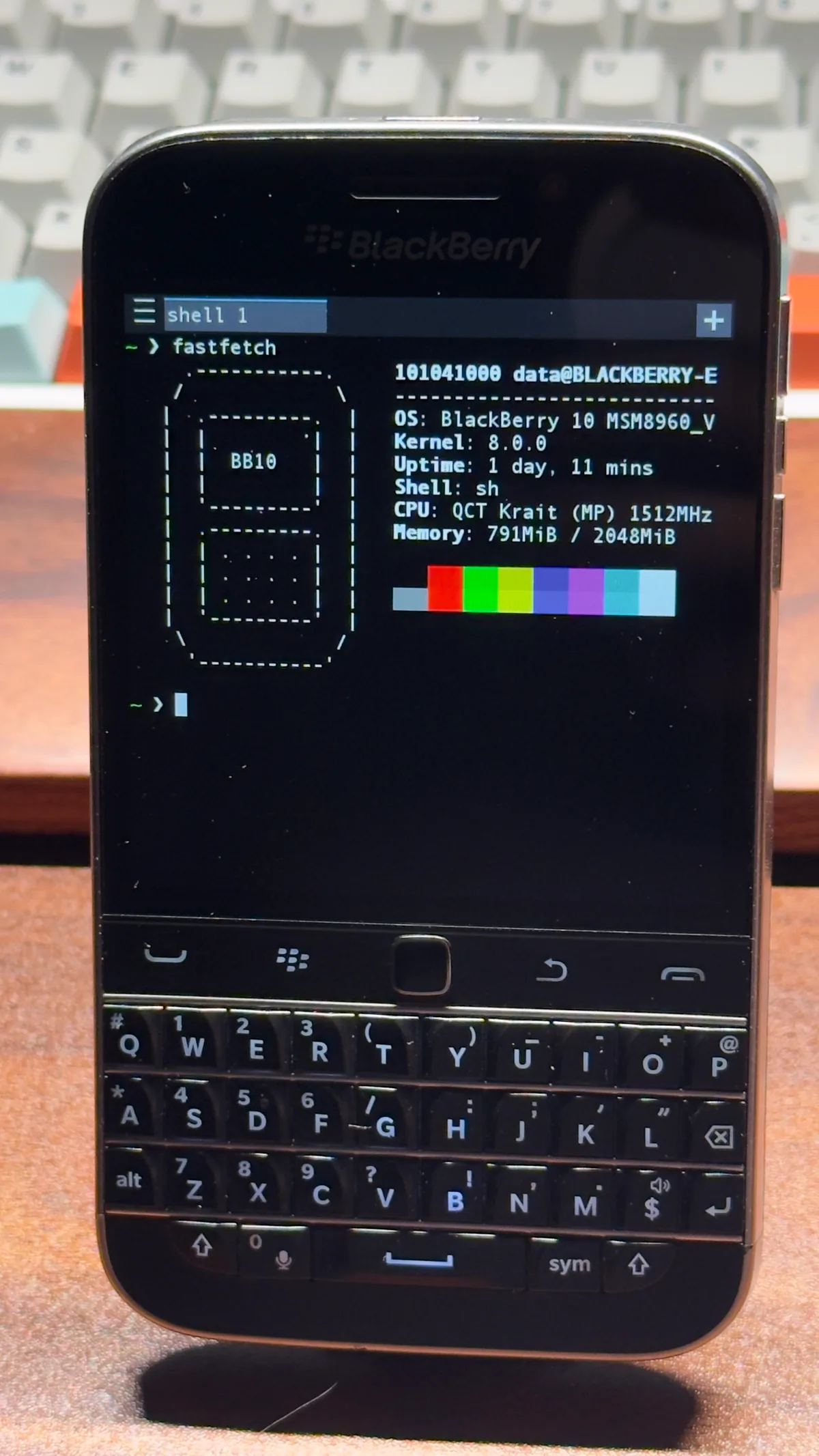
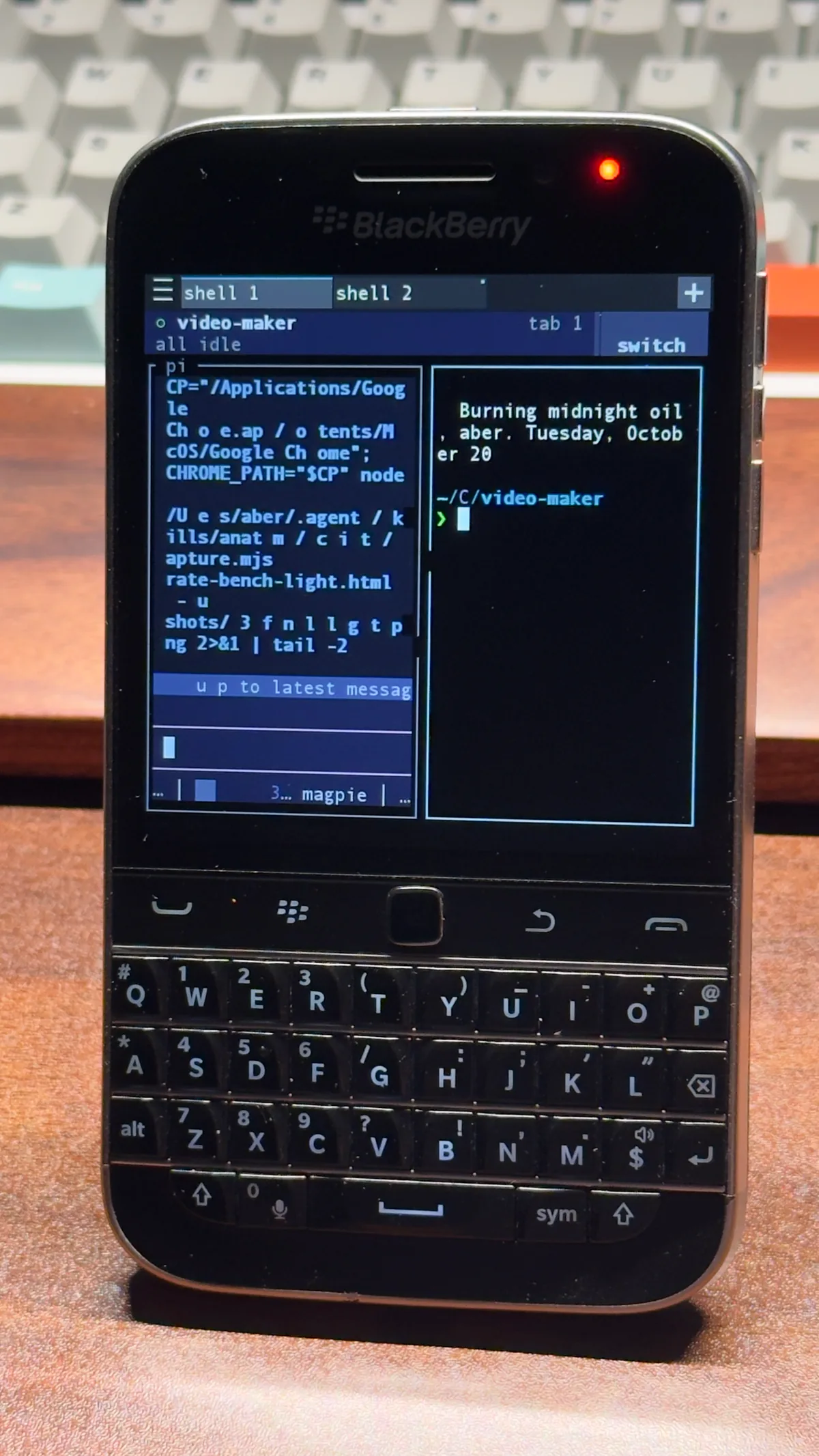
| fastfetch | ssh + herdr |
|---|---|
 |
 |
Term49 is the terminal preinstalled in the flashing package. I first switched to Term49C (a fork of Term49 that adds keyboard shortcuts and touchpad support). It is a native application built with SDL 1.2 and QNX Screen. It can only receive keyboard events, cannot use the system’s Chinese input method, and can run only one session per window.
The rewritten Term49X still uses the same SDL 1.2 + QNX Screen foundation but adds several features to Term49C’s source code: multi-session tabs and a switcher, built-in Xiaohe Shuangpin and Quanpin input methods, scrollback search, and Nerd Font icons.
I also tried using the system input method. Its interface is proprietary, and the reverse-engineered version I attempted provided none of the necessary input method callbacks. In the end, I had to build my own input bar and embed an input method within the software.
Chinese input also presents another challenge in the shell: QNX lacks UTF-8 locale data, and the zsh 5.0.2 included with BerryCore was compiled without multibyte support. Typing Chinese after the prompt resulted in a bunch of squares. Later, I cross-compiled zsh 5.9 and added the missing wcwidth/iswprint functions for QNX, which finally allowed normal input and backspacing.
If needed, you can check out the Term49X repository for details.
References
- Cocozq: Simple Rooting Tutorial for BlackBerry 10 Q10/Q20/Q30 Phones
- BlackBerry 10 root and more: Pre-rooted autoloaders v3
- Term49 / Term49C